

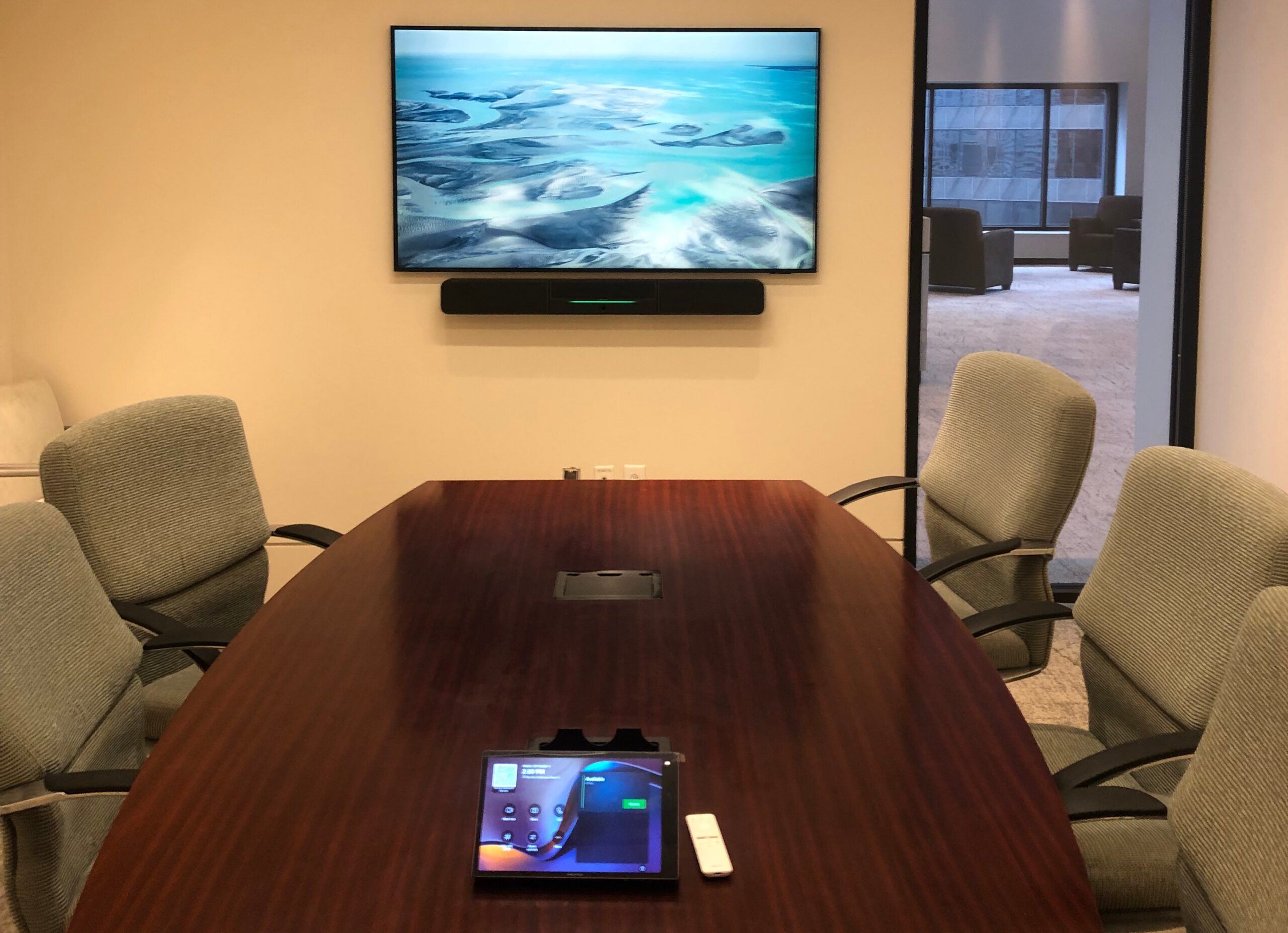
Quick answer: An MTR, or Microsoft Teams Room, is a dedicated conference room system that runs Microsoft Teams on its own certified computer or appliance, with its own room account, calendar and touch controller. Instead of connecting a laptop, users walk in and tap Join. MTRs make the most sense for frequently used shared rooms; a well-designed BYOD room is often enough for smaller or occasional-use spaces.
If you have been planning a conference room AV system lately, you may have heard someone ask whether it should be an “MTR.” The acronym sounds more mysterious than the product. MTR simply means Microsoft Teams Room: a dedicated meeting system designed to make a shared room behave like a built-in extension of Microsoft Teams.
The key word is dedicated. In an ordinary conference room, someone brings a laptop, connects it to the camera, microphones, speakers and display, then launches the meeting. In a Teams Room, the room has its own computer or appliance, its own Teams identity and its own calendar. The meeting can be waiting on the room’s touch panel before anyone opens a laptop.
That can make meetings faster and more consistent. It also adds cost, licensing and IT responsibilities. An MTR is a workflow choice—not an automatic requirement for a good conference room. When Go Media designs Microsoft Teams Rooms and Zoom Rooms, that is where the conversation starts: not with whether an MTR sounds more sophisticated, but with whether the workflow earns its cost and complexity.
What Is a Microsoft Teams Room (MTR) Like to Use?
A properly configured Microsoft Teams Room is meant to remove the familiar first five minutes of meeting-room friction. The organizer schedules a Teams meeting and invites the room just as they would invite a person. The room accepts the reservation, places it on its calendar and presents a Join button on the touch controller at meeting time.
A user walks in, taps Join and the room’s camera, microphones, speakers and displays connect to the call. Participants can adjust volume, mute microphones, change layouts, manage cameras and share content from the same room interface. Because the system belongs to the room, the experience does not depend on whose laptop happens to be present.
That consistency is the main value proposition. The impressive camera and microphone technology matters, but those same categories of hardware can also be used in a well-designed BYOD room. What makes an MTR different is the room-native Teams experience.
MTR vs. BYOD Conference Rooms: Who Runs the Meeting?
BYOD means “bring your own device.” In a BYOD conference room, the participant’s laptop is the meeting computer. The room provides the display, camera, microphones and speakers, often through one USB-C cable or a combination of USB and HDMI. The user can open Teams, Zoom, Webex, Google Meet or another application installed on the laptop.
In an MTR, the dedicated room system is the meeting computer. The participant may still bring a laptop to share content or participate as a companion device, but the room itself joins and controls the call.
| Decision point | Microsoft Teams Room | BYOD room |
|---|---|---|
| Meeting computer | The room’s dedicated Teams system | A participant’s laptop |
| Typical start | Invite the room, then tap Join | Connect the laptop, select devices and start the call |
| Room calendar | Built into the room experience | Usually viewed on the user’s laptop |
| Consistency | High: the room behaves the same for each user | Varies with laptops, adapters, permissions and user settings |
| Platform flexibility | Teams-first, with supported guest-join options for selected platforms | Broad: use whatever meeting app runs on the laptop |
| Central management | Designed for device monitoring, policy and updates | Usually limited to the installed peripherals |
| Best fit | Frequently used shared rooms and standardized fleets | Smaller, occasional-use or platform-agnostic rooms |
Neither approach is inherently more professional. A thoughtfully designed BYOD room can have outstanding audio and video. A poorly designed MTR can still suffer from bad camera angles, weak microphone coverage or confusing signal paths. The difference is primarily how users start meetings and how IT manages the room. That distinction is central to Go Media’s design process: understand the way people actually meet, then select the system that supports it.
What Equipment Is in a Microsoft Teams Room?
An MTR is a complete room system, not one magic box. The exact design changes with room size, acoustics, furniture and the type of meetings being held, but most Teams Room installations include the following pieces:
- A dedicated Teams compute device or Android appliance. This runs the Teams Rooms application and stays assigned to the room.
- A touch controller. Usually located on the table or wall, it provides the calendar, Join button and in-meeting controls.
- One or more front-of-room displays. A single display may show people and content together; dual displays can separate them or provide more layout flexibility. Commercial-grade displays are built for the daily run time a busy meeting room demands.
- A camera or camera system. Options range from a compact video bar to multi-camera systems with speaker tracking, presenter tracking or wider room coverage. Keep in mind that room lighting affects video quality as much as the camera does.
- Microphones and loudspeakers. Small rooms may use a video bar. Larger rooms often need ceiling, table or distributed microphones, dedicated processing and installed professional audio. Hard, reflective rooms may also need acoustic treatment so remote participants can understand every word.
- A way to share content. This may be a wired connection, wireless presentation, Teams casting or a combination of methods.
- A Microsoft 365 room resource account and Teams Rooms license. The room uses this identity for its calendar, sign-in and meeting experience.
- Network, power and infrastructure. Reliable wired networking, correct firewall access, cable pathways, presentation furniture and serviceable mounting are part of the system even if users never see them.
Optional additions can include a scheduling panel outside the room, occupancy sensors, AV control system integration, interactive touch displays, extra cameras, assistive-listening systems and support for local presentations that do not involve a video call.
Microsoft Teams Rooms Hardware: More Than One Way to Build an MTR
Microsoft Teams Rooms is not tied to one hardware manufacturer. The market includes complete room systems, certified components and integration platforms from market-leading names such as Crestron, Extron, Biamp, MAXHUB and others. Depending on the manufacturer and system, those portfolios can include dedicated compute, touch controllers, video bars, cameras, audio processing, microphones, loudspeakers, switching and room-control integration.
Go Media partners with all of these manufacturers, giving us an array of solution options. We build around the room, workflow, IT standards and budget instead of steering every customer toward the same box. A huddle room may benefit from an integrated appliance; a larger boardroom, classroom or training space may call for specialized components working as one system.
Microsoft Teams Rooms Licensing: Basic vs. Pro
A Teams Room does not normally sign in as the person who happens to use it most. Each physical room should have its own Microsoft 365 resource account and room mailbox. Employees invite that account when they reserve the space, and the Teams Rooms license is assigned to the room account—licensing is per room, not per user.
Microsoft currently offers two main license levels for certified Teams Rooms systems:
- Teams Rooms Basic is available at no additional license charge for organizations with certified Teams Rooms hardware, with a limit of 25 Basic-licensed rooms. It includes core functions such as scheduling, one-touch join, content sharing, collaborative whiteboarding and basic security and management.
- Teams Rooms Pro is Microsoft’s paid room license. As of September 2026, Microsoft lists it at $40 per room per month in the United States when paid annually. It adds advanced meeting experiences plus expanded security, remote management, analytics, alerting and operational tools.
The practical choice is not simply “free or paid.” A small organization with a few straightforward rooms may be well served by Basic. An organization standardizing many rooms—or one that wants stronger remote monitoring, policy controls and advanced features—may find Pro easier to operate over time. Teams panels outside the room, calling features and certain security requirements can also affect licensing; for example, Basic licenses cannot be used for Teams Panels. Go Media can help map those operational needs to the right room design and license before they become surprises after installation.
Microsoft changes product features and licensing terms over time, so the room license should be confirmed against Microsoft’s Teams Rooms licensing documentation during design and again before purchase. Government agencies using government cloud environments also have their own feature and availability considerations.
Teams Rooms on Windows vs. Android
Microsoft Teams Rooms are available on both Windows and Android. The user experience is intentionally similar: both can provide a dedicated room calendar, one-touch join, content sharing and familiar Teams meeting controls. The choice is less about what employees prefer on their personal computers and more about the complexity of the room.
Teams Rooms on Android
Android systems are commonly built around an all-in-one video bar with a matching touch controller. That can make them attractive for huddle rooms and small-to-medium conference rooms: there are fewer separate boxes, installation can be clean, and deployment is often straightforward.
Android is not limited to tiny rooms, and the product category continues to expand. Still, specific devices and the Android platform may offer fewer choices for highly customized signal routing, specialized room control or unusual display configurations. Feature timing can also differ from Windows.
Teams Rooms on Windows
Windows systems commonly use a separate room computer and touch console, then connect to either bundled or independently selected certified cameras and audio peripherals. This modular approach is often a strong fit for larger or more complex rooms with multiple displays, multiple cameras, ceiling microphones, DSP-based audio or third-party control systems.
The additional flexibility can mean more hardware and a more involved deployment. For a simple six-person room, that may not create meaningful value. For a divisible training room, council chamber or large boardroom, it may be exactly what the design requires—and the kind of system-level coordination Go Media handles especially well.
Microsoft maintains a current Windows and Android feature-comparison matrix because differences move as both platforms evolve. Choose the platform after identifying required features, certified peripherals, room-control needs and the organization’s device-management standards—not from a blanket assumption that one operating system is always better.
Can a Microsoft Teams Room Join Zoom, Webex and Other Meetings?
Teams Rooms are Teams-first systems, but that does not necessarily mean Teams-only. Microsoft supports direct guest join for selected third-party meeting services, and the exact services and feature depth vary by platform and configuration. Guest joining can be very useful, but it may not provide every control or workflow available in a native Teams meeting.
Organizations that routinely host meetings across several platforms should discuss that requirement early. In many cases, an MTR can be designed with a BYOD mode or USB passthrough so a laptop can temporarily use the room camera, microphones, speakers and display. This hybrid approach preserves the quick native Teams experience while giving users an escape hatch for an unusual platform or guest workflow. For a deeper look, see our guide on how to integrate Zoom and Microsoft Teams in a conference room. Go Media can design that flexibility into the room from the beginning instead of leaving users to improvise it later.
When a Microsoft Teams Room Is Usually Worth It
- The room hosts Teams meetings frequently, especially several times per day.
- Many different employees use the room and need the same predictable experience.
- Meetings are scheduled through Outlook or Teams and the room should display its own calendar.
- Starting on time matters more than saving the last few dollars of project cost.
- The organization wants to standardize several rooms across one or more locations.
- IT needs visibility into device health, updates, usage, alerts or configuration.
- The room is large or important enough that dedicated cameras, microphones, audio processing and control are already justified.
- Users should be able to walk in and join without connecting a personal laptop.
When a Simpler BYOD Room May Be Enough
- Video calls are occasional rather than central to the room’s purpose.
- The space is small and normally used by the same few people.
- Users frequently move among several meeting platforms and want the laptop to remain in control.
- The organization does not want to maintain room accounts, licenses and dedicated meeting appliances.
- Budget is limited and the primary need is local presentation with occasional conferencing.
- A reliable one-cable connection gives users all the convenience the room actually needs.
There is no shame in choosing the simpler room. Complexity should earn its place. If a well-labeled USB-C cable, a quality video bar and a properly sized display solve the problem, an MTR may be unnecessary. Go Media will recommend the simpler solution when it is the better fit; good integration is measured by how well the room works, not by how much equipment it contains.
Questions to Answer Before Choosing an MTR or BYOD Room
- How often does the room host remote meetings? Frequency is one of the clearest indicators of whether one-touch join will create real value.
- Is Teams the organization’s standard platform? The more Teams-centric the culture, the stronger the case for a native room.
- How many people use the room? Room size affects camera coverage, microphone pickup, loudspeaker design and display visibility—not just the choice of appliance.
- Will outside guests host meetings? Guest-platform and BYOD requirements should be planned rather than improvised after installation.
- Who will manage the room account and device? Ownership for licensing, passwords or passwordless identity, updates, monitoring and support should be clear.
- Does the room need to control more than the call? Lighting, motorized shades, multiple sources, complex audio, divisible-room functions and custom interfaces may influence the platform and system architecture.
- What happens when something fails? Remote monitoring, spare-device strategy, vendor support and accessible service paths matter more as rooms become operationally important—and they shape how long an AV system lasts.
Microsoft Teams Rooms FAQ
What does MTR stand for?
MTR stands for Microsoft Teams Room. It is a dedicated conference room system with its own certified computer or appliance, Microsoft 365 room account and touch controller, so users can join Teams meetings with one tap instead of connecting a laptop.
What is the difference between a Teams Room and a BYOD room?
In a Teams Room, the room’s dedicated system runs the meeting. In a BYOD (bring your own device) room, a participant’s laptop runs the meeting and uses the room’s camera, microphones, speakers and display. Both can deliver excellent audio and video; the difference is how meetings start and how IT manages the room.
Is Microsoft Teams Rooms Basic free?
Yes. Teams Rooms Basic carries no additional license charge for certified Teams Rooms hardware, up to 25 rooms per organization. Rooms beyond that limit, or rooms that need advanced management, security and meeting features, require Teams Rooms Pro, which Microsoft lists at $40 per room per month when paid annually.
Can a Microsoft Teams Room join Zoom meetings?
Often, yes. Microsoft supports direct guest join for selected third-party platforms such as Zoom and Webex, though features vary. For rooms that regularly use other platforms, a BYOD mode or USB passthrough lets a laptop use the room’s audio and video equipment.
Should I choose Teams Rooms on Windows or Android?
Android systems, usually built around an all-in-one video bar, are a clean fit for huddle and small-to-medium rooms. Windows systems are more modular and often suit larger rooms with multiple displays, multiple cameras, ceiling microphones or third-party control. Choose based on the room’s requirements rather than operating system preference.
The Best Conference Room Is the One People Can Use
Microsoft Teams Rooms can dramatically improve the everyday experience of a busy shared conference room. A meeting appears on the room calendar, the user taps one button, and the installed audio and video system behaves consistently. Across multiple rooms, that familiarity can save time and reduce support calls.
But MTR is not a quality badge and BYOD is not a bargain-basement alternative. They are different operating models. The right decision depends on meeting frequency, platform mix, room complexity, management expectations and the people who will use the space.
A good design conversation should begin with those workflows, then select the certified hardware, license and platform that support them. When the technology matches the way the organization actually meets, the acronym quickly fades into the background—and the room simply works. That is the standard Go Media designs toward for organizations across Louisiana and Texas. If you are weighing an MTR, BYOD or a hybrid approach, bring us the room and the workflow; we will help you build the right answer. Talk to a Go Media expert to get started.